3.2 Running Programs at the Command-Line
This is covered in Assignment 1, and I just go over basics here.
3.2.1 Programs that are Compiled: C
Programs written in C or FORTRAN or some other languages must be compiled to generate executable
programs. Most programs we will work with are in C, and the default compiler for C in Linux is gcc. I’ll
demonstrate a typical workflow for writing, compiling, and running a C program here.
First, cd to your cheT580 subdirectory, and create and cd into a subdirectory called examples, then launch
VSCode:
$ cd
$ cd cheT580
$ mkdir examples
$ cd examples
$ code .
You should see the code window appear something like this: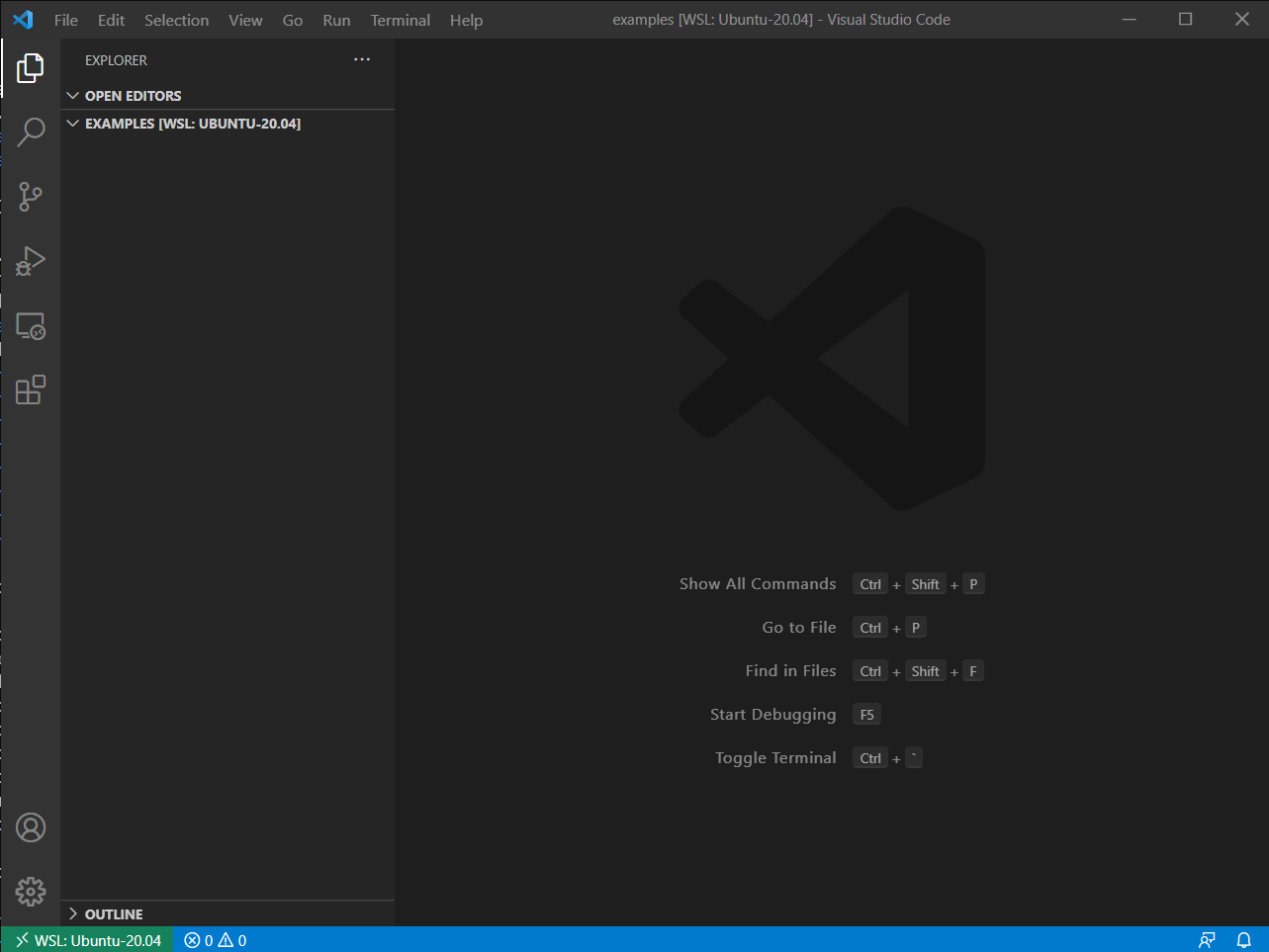
Using the explorer panel, I can click on the new file icon and create a new file called hello_pi.c: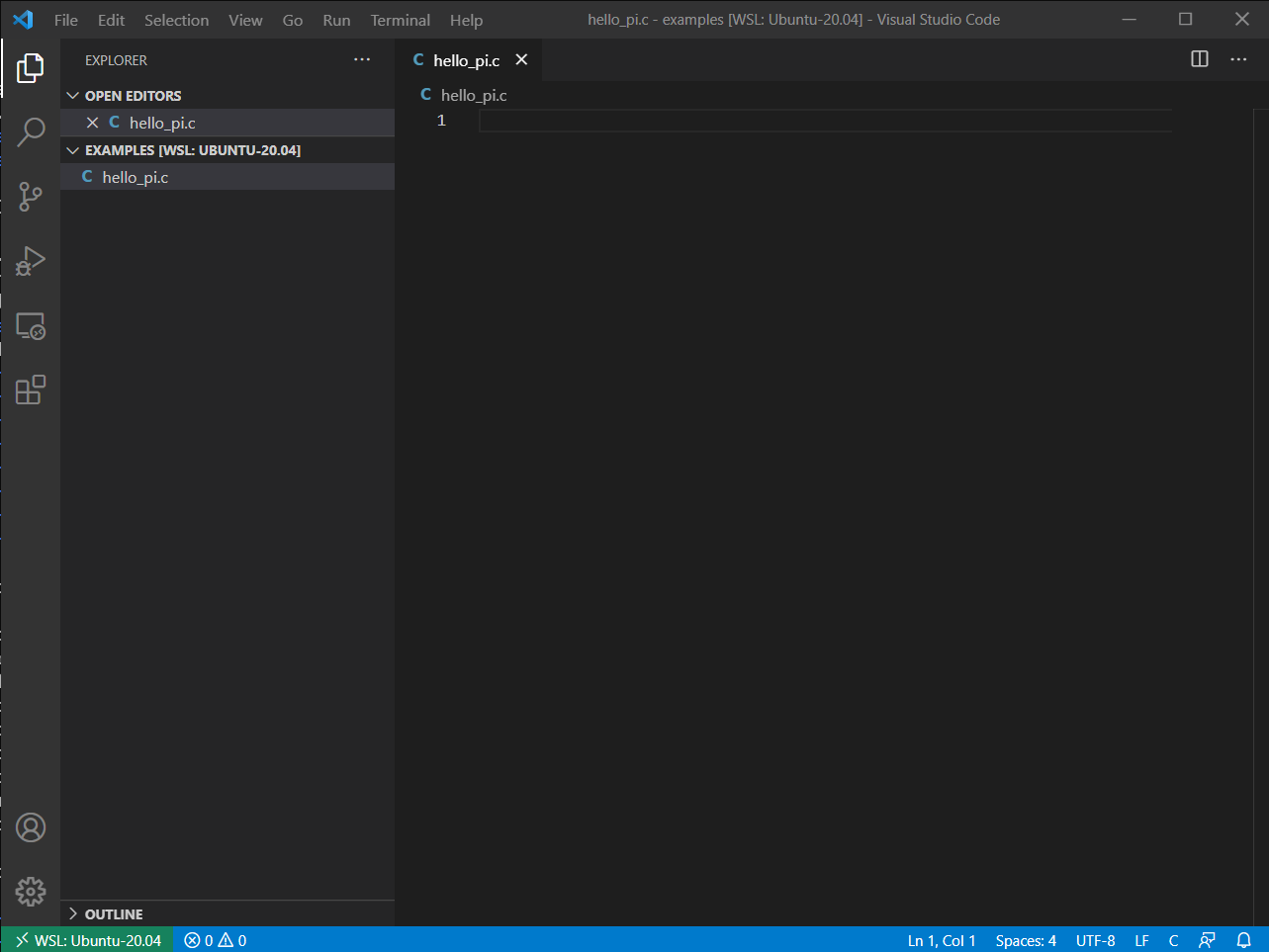
Now, let’s create a little C program: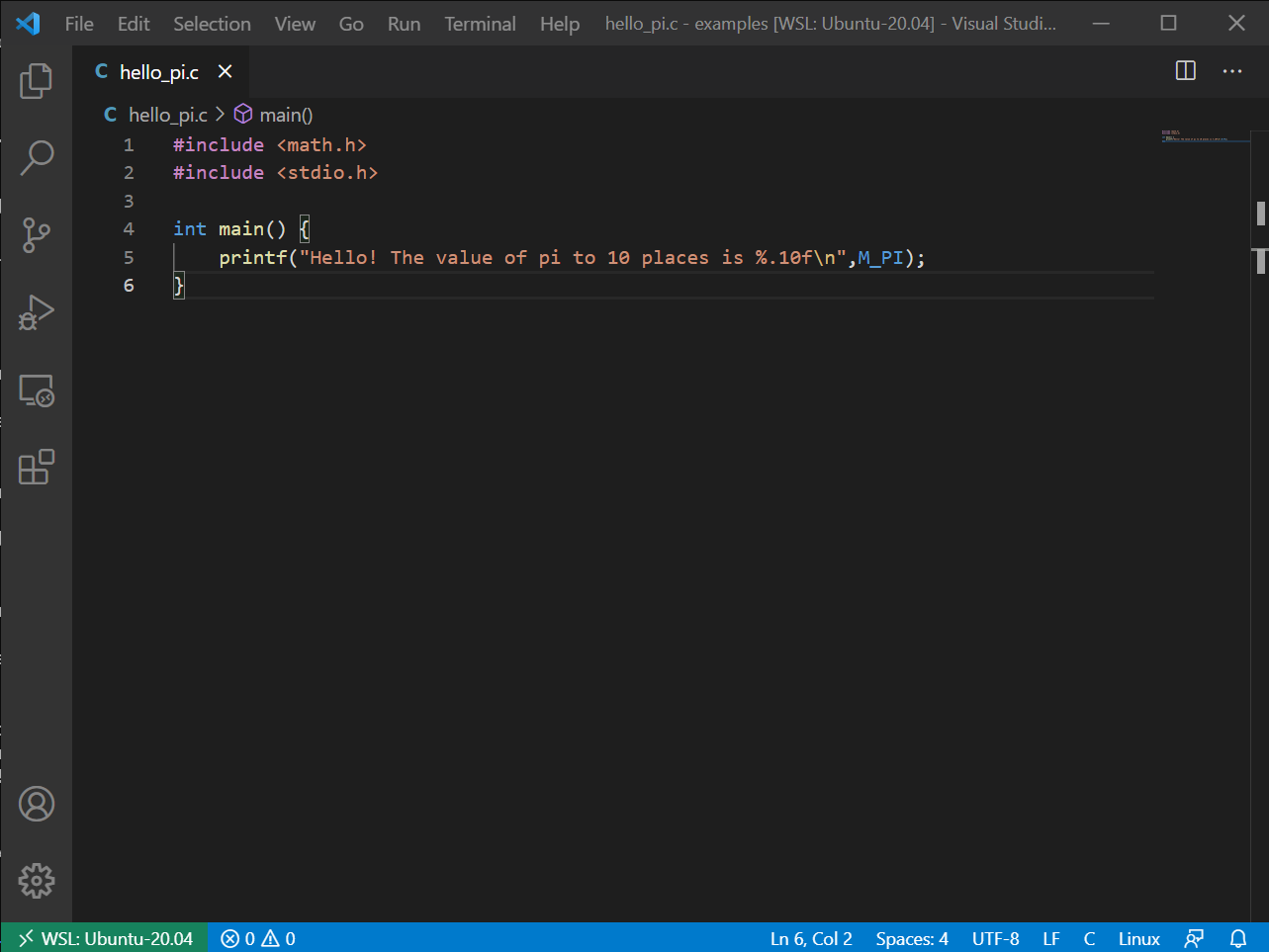
Notice that two libraries are included: stdio and math. I need stdio to use the printf() function, and I need
math to access the constant M_PI.
Saving that with Ctrl-S, I can now launch a new Terminal inside VSCode (or just go back to the WSL
terminal), and compile and run: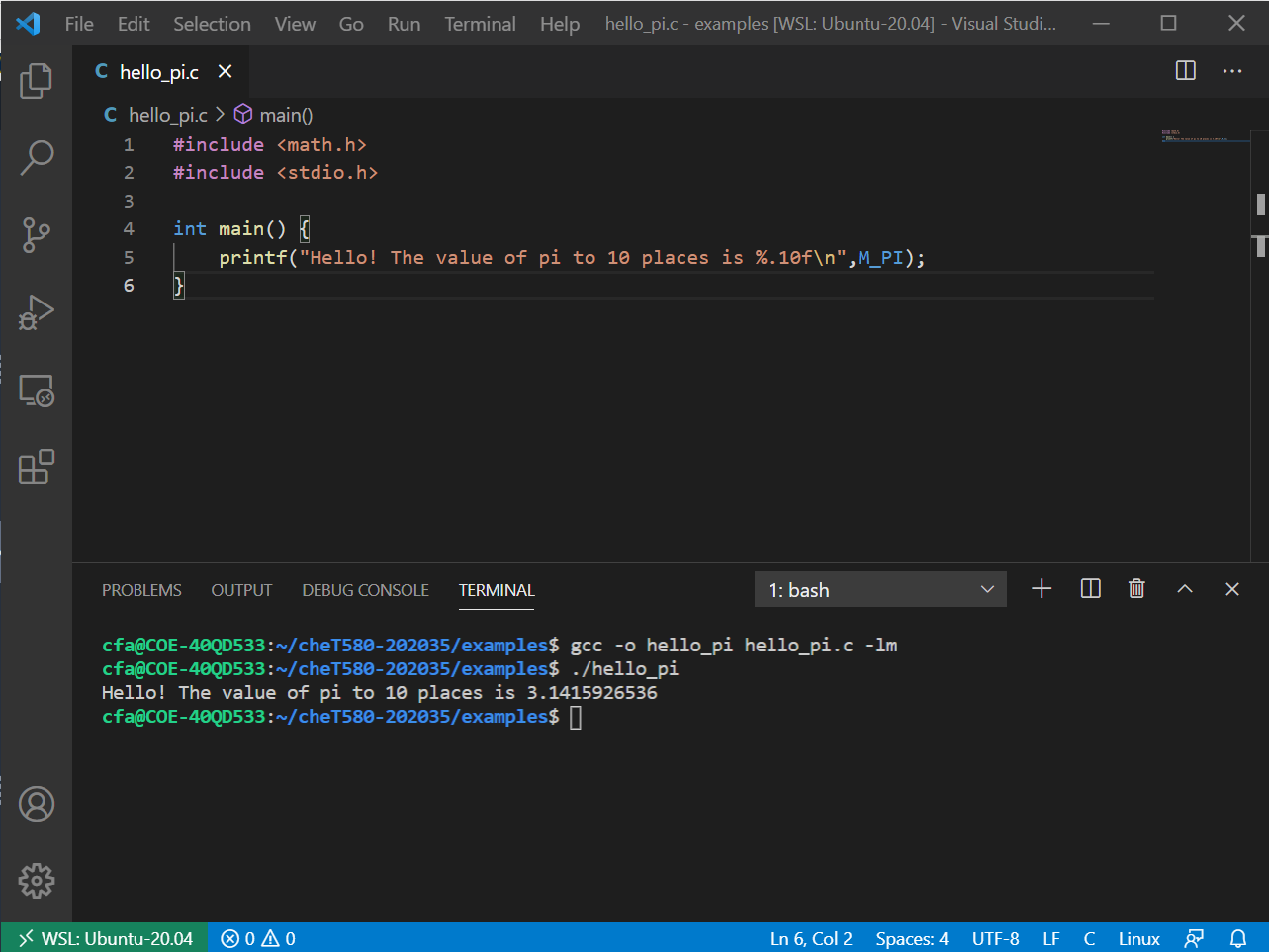
The compile command is gcc and its main argument is the name of the C program hello_pi.c. The -o
switch is used to identify the name of the output of the compilation; here, that is the name of the executable,
and we’re choosing to call that hello_pi. If we do not include a -o switch, gcc calls the ouput a.out. The -lm
switch instructs gcc to include the precompiled standard math library; try omitting this switch and see what
happens.
The executable hello_pi lives in the same directory as the source code hello_pi.c. We can run it by just
typing the name of the executable, prepended with ./. This instructs the shell NOT to go looking in any
standard system directories for the name of the command (which it normally does), but instead to run the
command whose executable is found in the current directory. The current directory is always signified by ./.
Running this program provides the anticipated result.
3.2.2 Programs that are Interpreted: Python
Unlike C, Python is an interpreted programming language. This just means that you don’t have to compile it yourself before running it. Instead, you feed the program to the Python intepreter and it compiles and runs it for you, and then exits.
Keeping that instance of VSCode running inside the examples subdirectory, let’s create a new file called
hello_pi.py: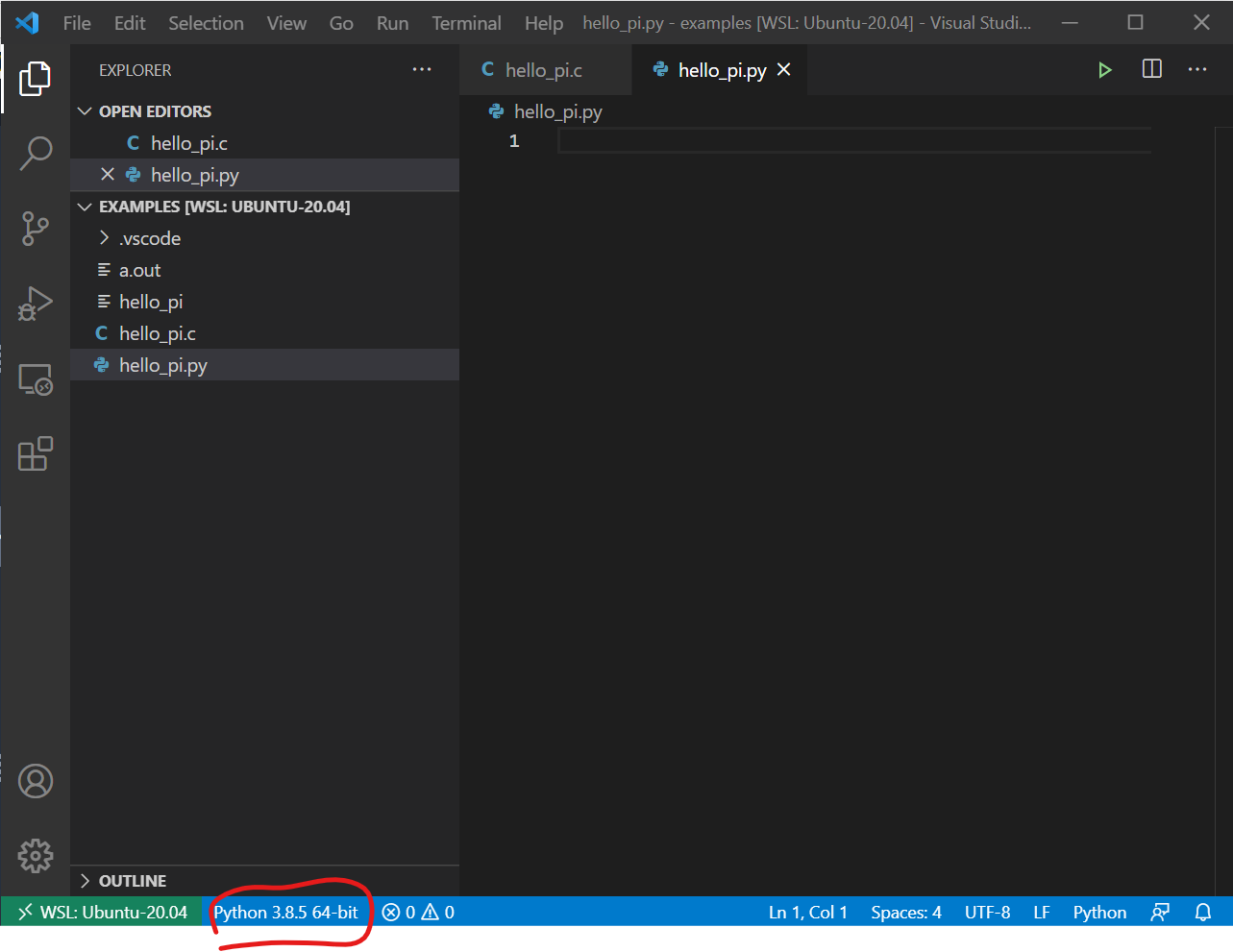
In red, I’ve circled the little message indicating which Python interpreter VSCode will use if
you choose to run this program using VSCode. You may instead see a message here indicating
that you have to select a Python interpreter. (Windows users: If you did not install Python inside
your WSL/Ubuntu already, as instructed in Assignment 1, you can do so now using apt at the
command-line.)
Here is Python that does exactly the same thing as hello_pi.c: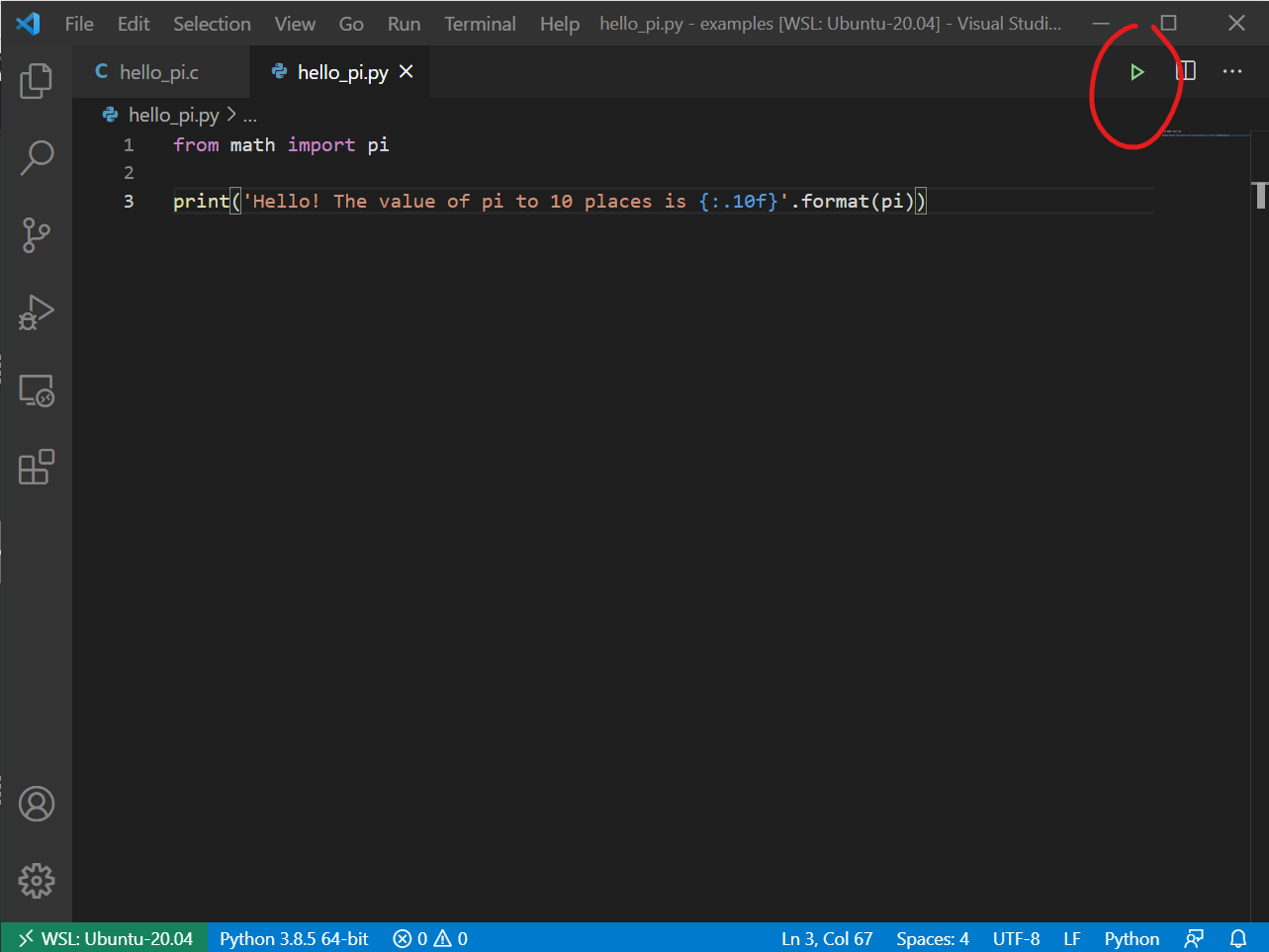
Now, notice that little green “play” button in the upper-right? I can just click that to run the Python
program: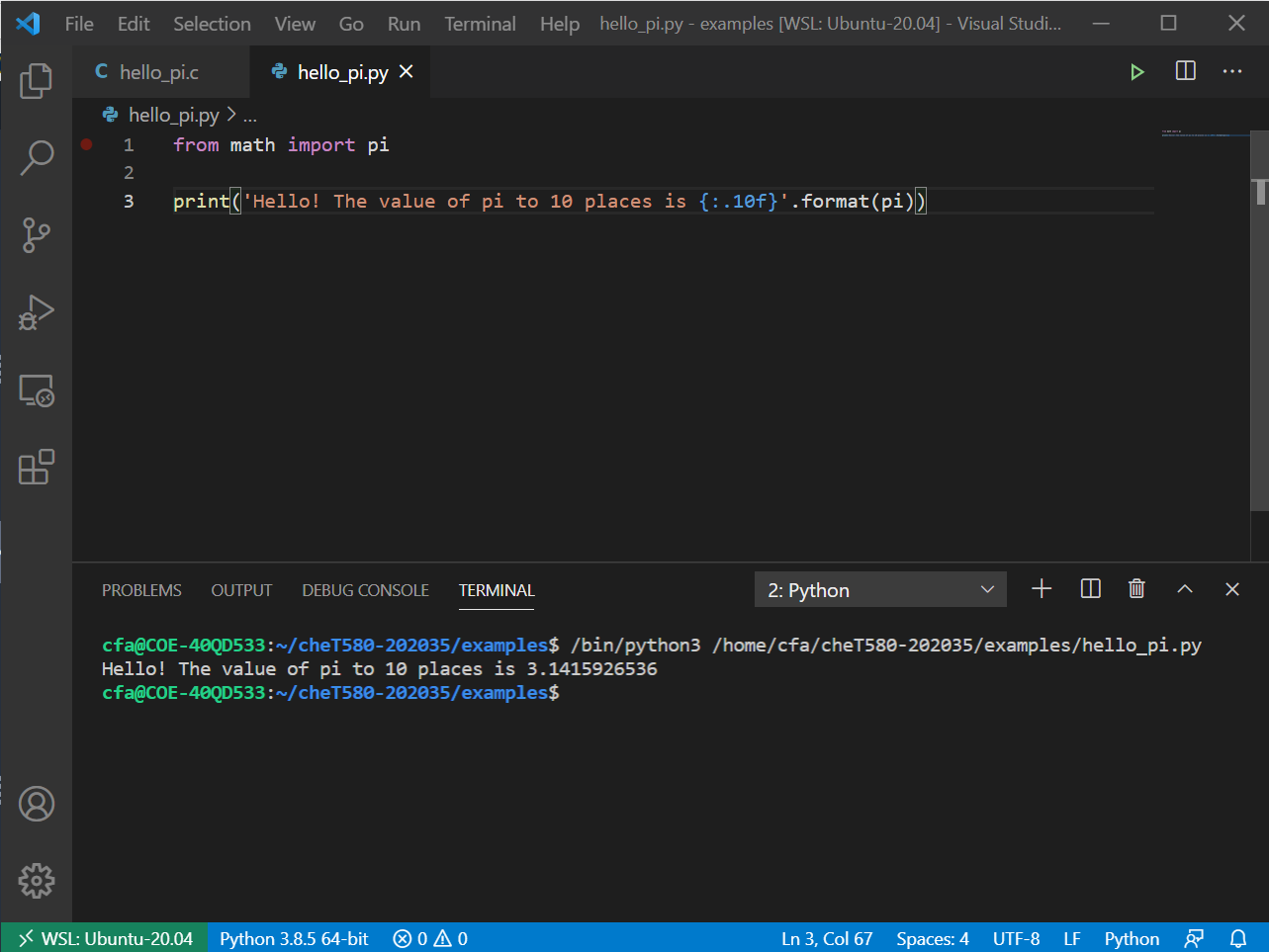
And we still get the anticipated result. We need not run the Python program inside VSCode; we are free to
run it at the command-line, but notice the command that VSCode issued to run the program: the program that
VSCode runs is actually the interpreter /bin/python3, and the argument of that command is the full pathname
of the Python script. You could alternatively issue that command at the bash prompt and the same result would
happen.